Taking an installer live
Activation is the moment an installer’s calculator stops returning a 404 and starts answering to the public. It is the only irreversible-feeling thing an operator does, because the second it happens a stranger can put their address in and be shown a price.
Everything before it is safe. A pending installer has a fully working dashboard, can enter pricing, add products, set their colours and preview the whole thing. The only thing they cannot do is be found.
Before you press anything
Section titled “Before you press anything”Activation is meant to be a conversation, not an administrative sweep. The sign-up page tells the installer “We take you live together”, so the checklist below is really a script for that call.
Preview their calculator first, at their own address. You are looking at the same six steps their customers will see, in their colours, with their numbers, and it takes two minutes to spot that a saving is implausible or that a step label still says something odd.
The checklist
Section titled “The checklist”A pending row carries its blockers underneath the company name, in order.

“Pricing is still the platform placeholder”
Section titled ““Pricing is still the platform placeholder””Every new account starts on Solar Desk’s example figures: generation per kWp, electricity price, export payment, base installation, cost per kWp, scaffolding, self-consumption, the representative APR. They exist so the calculator runs at all, and none of them belong to this installer.
This is the blocker that matters most, because it is invisible in the output. A calculator running on placeholder pricing does not look broken. It looks confident, and it hands a homeowner an installation cost and a payback period built on somebody’s example numbers. The installer’s own dashboard warns them about this in two places until base installation, cost per kWp and scaffolding are all their own figures.
“No active panel in the catalogue”
Section titled ““No active panel in the catalogue””New accounts ship with no products at all, deliberately, so that nobody’s quotes carry another installer’s hardware. Until there is a panel in the catalogue and it is marked as offered, there is nothing to put in front of a customer: with an empty catalogue the panel chooser on step 4 does not appear at all, and somebody picks a number of panels without ever seeing what they would be.
“No address set to receive new leads”
Section titled ““No address set to receive new leads””Under Theme, an installer lists the addresses that new enquiries and customer messages are emailed to. With none, an enquiry lands in the dashboard and nobody is told.
This is worse than it sounds, because of how notification works: one email per unread run, no re-nudge, no scheduler. There is no second chance at telling somebody. An installer who goes live without a notification address will find out when a customer rings up asking why nobody called back.
Taking the account live
Section titled “Taking the account live”-
Open the console and find the pending row. Read the checklist under the name.
-
If anything is outstanding, ring the installer rather than clicking. Every one of the three is a job only they can do, and all three live in their own settings.
-
Preview their calculator once the checklist is clear. Walk the six steps and look at the estimate at the end.
-
Click Take live. The row switches to Live, and their address starts answering to the public immediately.
There is no scheduling and no staged rollout. Live means live, from that click.
When the button refuses
Section titled “When the button refuses”Click Take live with blockers outstanding and nothing happens except an explanation: the outstanding items, joined into a single sentence, in red beside the button.
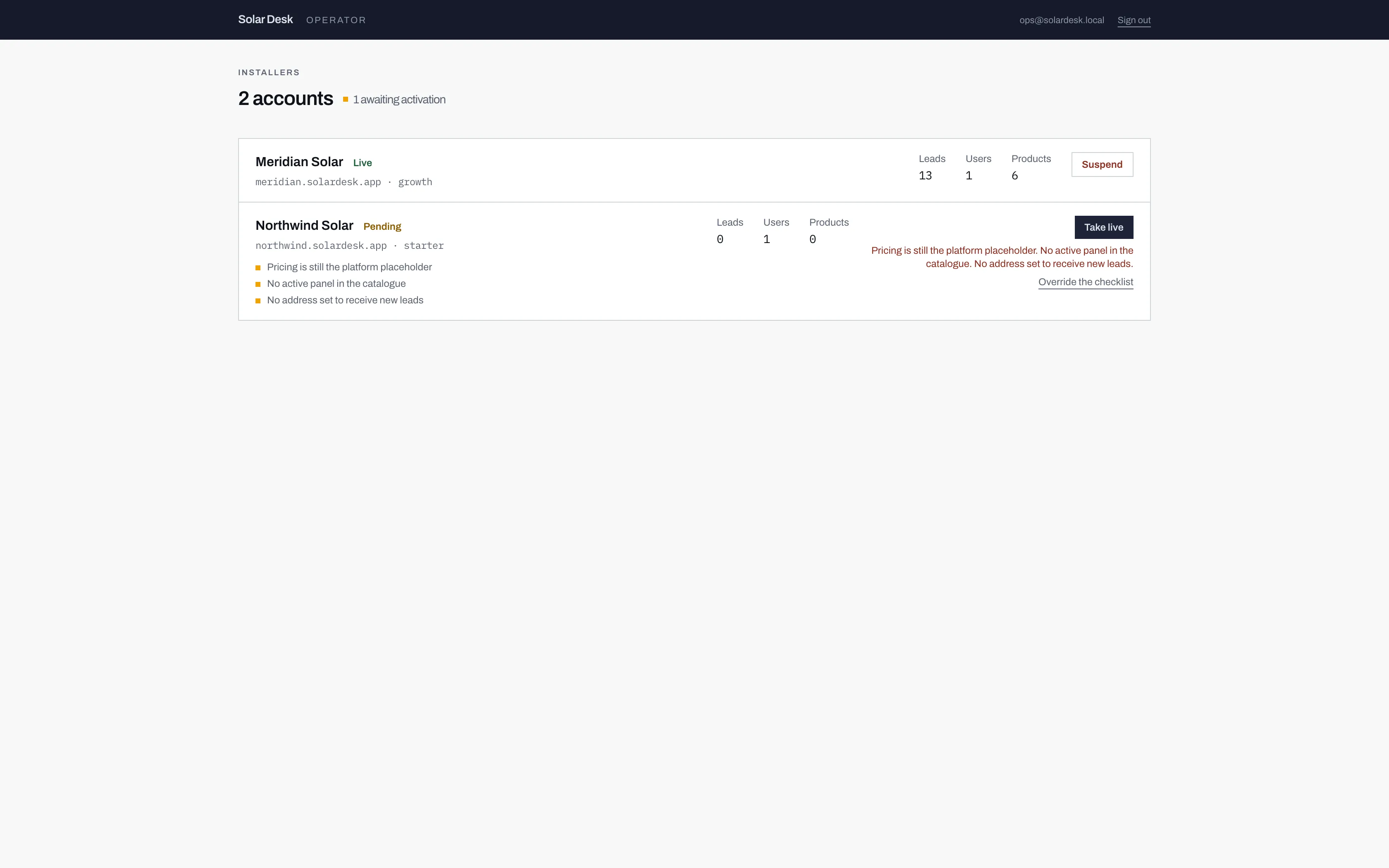
- The refusal. The same three items as the bullet list, restated as one sentence so there is no doubt about what stopped it.
- Override the checklist. A link, not a button, and it does not activate anything on its own.
The override, and what it costs
Section titled “The override, and what it costs”Underneath the refusal there is a link, Override the checklist. Clicking it does not take the account live. It reveals a second button, labelled exactly Yes — take live anyway, and only that second button acts.
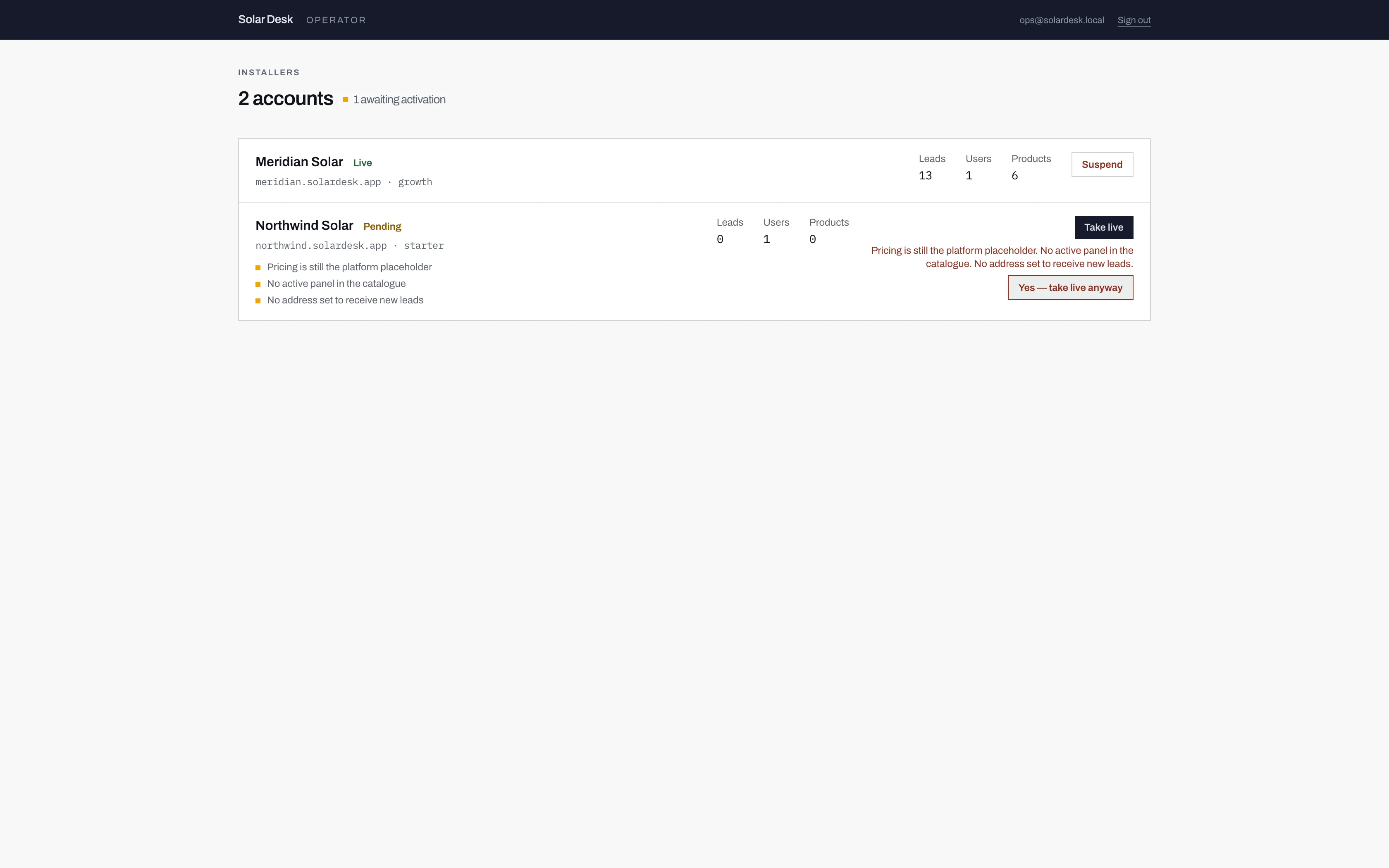
- The ordinary button still refuses. The override does not replace it.
- The second, deliberate confirmation. Two separate decisions, on purpose, so this cannot be a stray click.
Use the override when you know something the check cannot know, and when you have said it out loud to the installer. Being able to name the outstanding item, and why it is acceptable today, is the test. “They said they would sort it this afternoon” is not.
After activation
Section titled “After activation”The row reads Live, its button becomes Suspend, and the installer’s own dashboard drops the “Not live yet” banner. If it turns out the account should not have gone live, suspending is quick and does not destroy anything: see Suspending and closing.