Building a quote
The Quote panel sits in the right-hand column of every lead, under Notes and History. It is what makes Solar Desk a quoting tool rather than a lead inbox: the calculator produced a figure, and this is where you turn that figure into something itemised that a homeowner can take to their partner.
Any member of your team can build and save a quote. There is no admin gate on it, because a rep who cannot quote cannot sell.
Opening the builder
Section titled “Opening the builder”The panel opens on one line saying where the quoting stands, for example “No quote yet. The builder starts from the estimate they saw”, with the total and the number of lines it will start with. Under the versions, if there are any, sits a button that changes with the situation.
- Build the quote, when the lead has none.
- Amend as v2 (or v3, v4), when a quote already exists. It never edits the one that is there. See amending a quote.
- Cancel, while the editor is open. Nothing is saved on cancel.
The builder stays closed until you ask for it, so opening a lead shows you the state of the quoting rather than a form.
What is already filled in
Section titled “What is already filled in”The editor does not start blank. Its lines are seeded from the estimate the customer actually saw on your calculator, which matters more than it sounds: the homeowner already has a number in their head, and a quote that appears from nowhere and contradicts it starts the conversation with an argument.
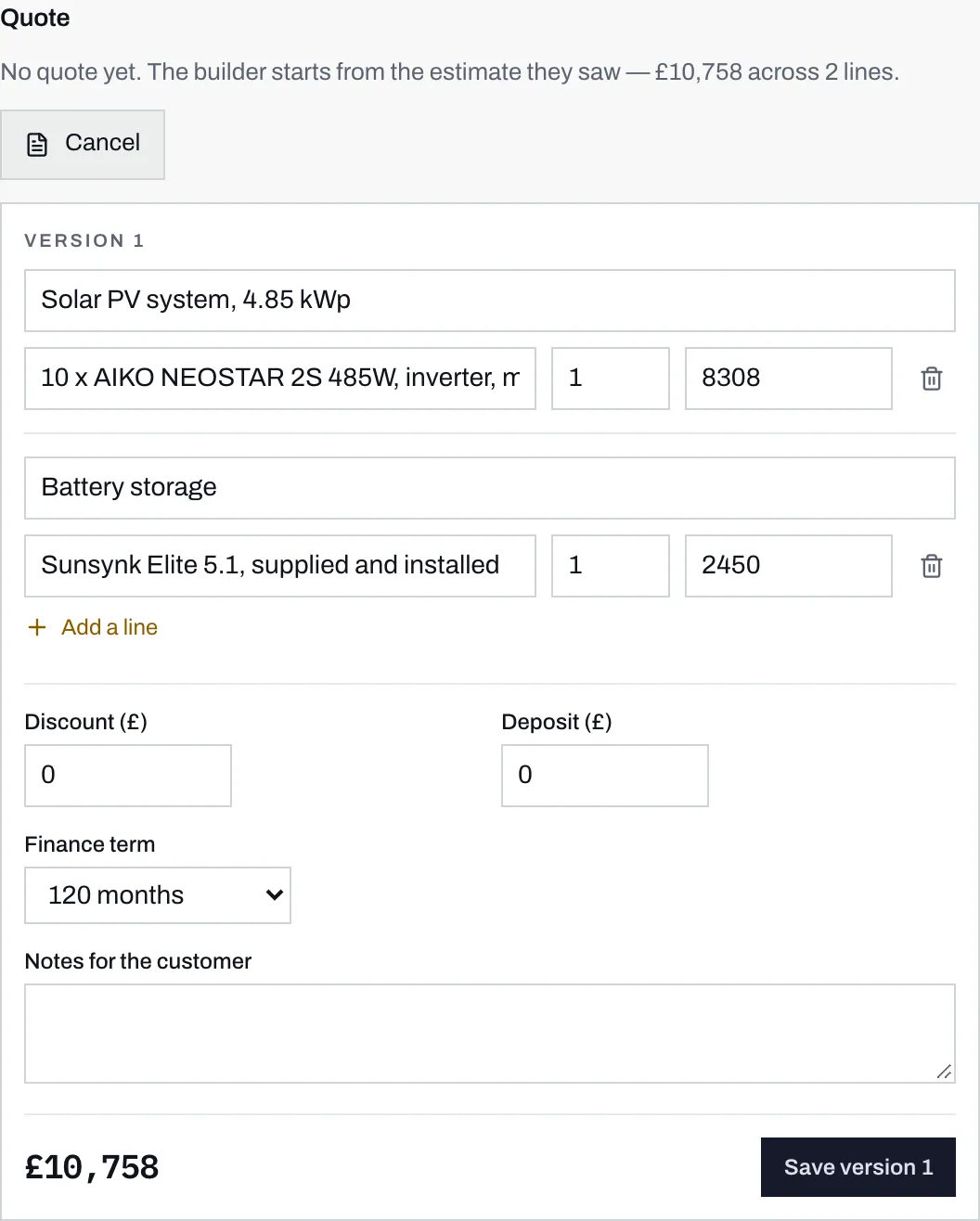
- The first line is the system itself, sized from their estimate, with the detail spelled out on the row beneath rather than hidden behind one word.
- Unit price, in whole pounds. The battery is priced on its own line so the customer can see what it costs them.
- A discount comes off the total. Deposit sits beside it and finance term below, and both feed the finance section of the PDF rather than the price.
- The running total updates as you type, and the button beside it names the version you are about to write.
You get one line for the system:
Solar PV system, 4.85 kWp 10 x AIKO NEOSTAR 2S 485W, inverter, mounting, scaffolding, DNO application and certification
and a second line for the battery where they chose one, naming the model and saying “supplied and installed”. One line reading “solar installation” answers none of a homeowner’s questions, which is why the detail is written out.
If the lead somehow has no estimate behind it, you get a single empty “Solar installation” line to fill in yourself.
Editing the lines
Section titled “Editing the lines”-
Item is the heading the customer reads, up to 160 characters, and takes the whole first row of a line. Detail is the smaller line under it on the quote, up to 300, and starts the second row.
-
Quantity and Unit price multiply. Prices are in whole pounds; there are no pence in a quote line.
-
The bin icon at the end of a row removes it.
-
Add a line appends an empty row. Use it for scaffolding you cannot avoid, a fuse board upgrade, a bird-proofing kit, or anything the calculator had no way to know about.
The running total at the bottom left is the sum of every line, less the discount, and it updates as you type.
Discount, deposit and finance term
Section titled “Discount, deposit and finance term”Three fields sit under the lines, and only one of them changes the price.
- Discount (£) comes straight off the subtotal. It cannot take the total below zero: a discount larger than the quote is capped at the quote.
- Deposit (£) is what you are asking for up front. It does not change the total. It changes the amount being financed, and therefore the monthly figure on the PDF.
- Finance term is a list: No finance, then the terms your pricing page offers, and it starts on the longest of them. It does not change the total either. It sets the term used for the monthly figure.
The monthly instalment, the amount of credit and the cost of credit are worked out from those two, using the representative APR and the lender named on your pricing page. You do not type them in and you cannot override them on a single quote, which is what stops one rep quoting a rate the company is not offering.
Notes for the customer
Section titled “Notes for the customer”A free-text box, up to 4,000 characters, that appears on the PDF the customer receives. This is the right place for what the price assumes and what it does not: access, scaffolding, an old consumer unit, a lead time, what happens if the survey finds something.
It is not the place for anything internal. That goes in Notes, which is a different panel with a different audience.
Saving
Section titled “Saving”Press Save version N. The button is inactive while there are no lines, and the server refuses an empty quote as well, with “A quote needs at least one line.”
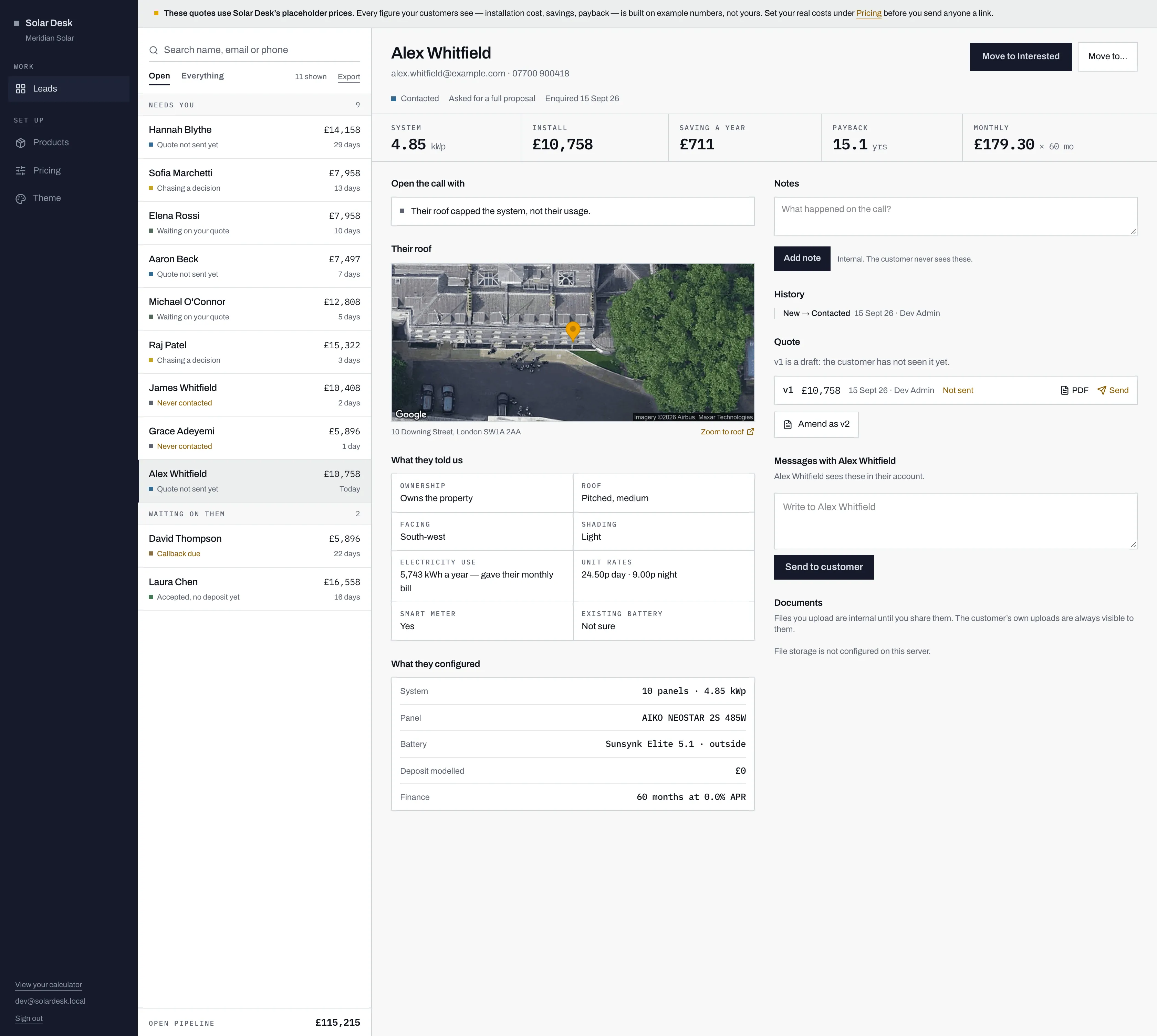
- The button now offers the next version. Every amendment counts up from here.
- A saved quote is Not sent until you send it. Nothing has reached the customer yet.
- Send appears only on a version that has not gone out. It is the only way a quote leaves the building.
You get “Version N saved.”, the editor closes, and the new version appears at the top of the list marked Not sent, with the line above the list saying it is a draft the customer has not seen. Nothing has reached the customer: saving and sending are separate steps on purpose, so you can build a quote on Friday and check it with a colleague before it goes out on Monday.
From here you can open the PDF to see exactly what the customer would get, or send it.