A tour of the dashboard
The dashboard is always Solar Desk’s own, in Solar Desk’s colours. Your branding goes on the customer-facing side and stops there. That split is why the product is named the way it is: this is the tool you log into, not a solar brand your customers meet.
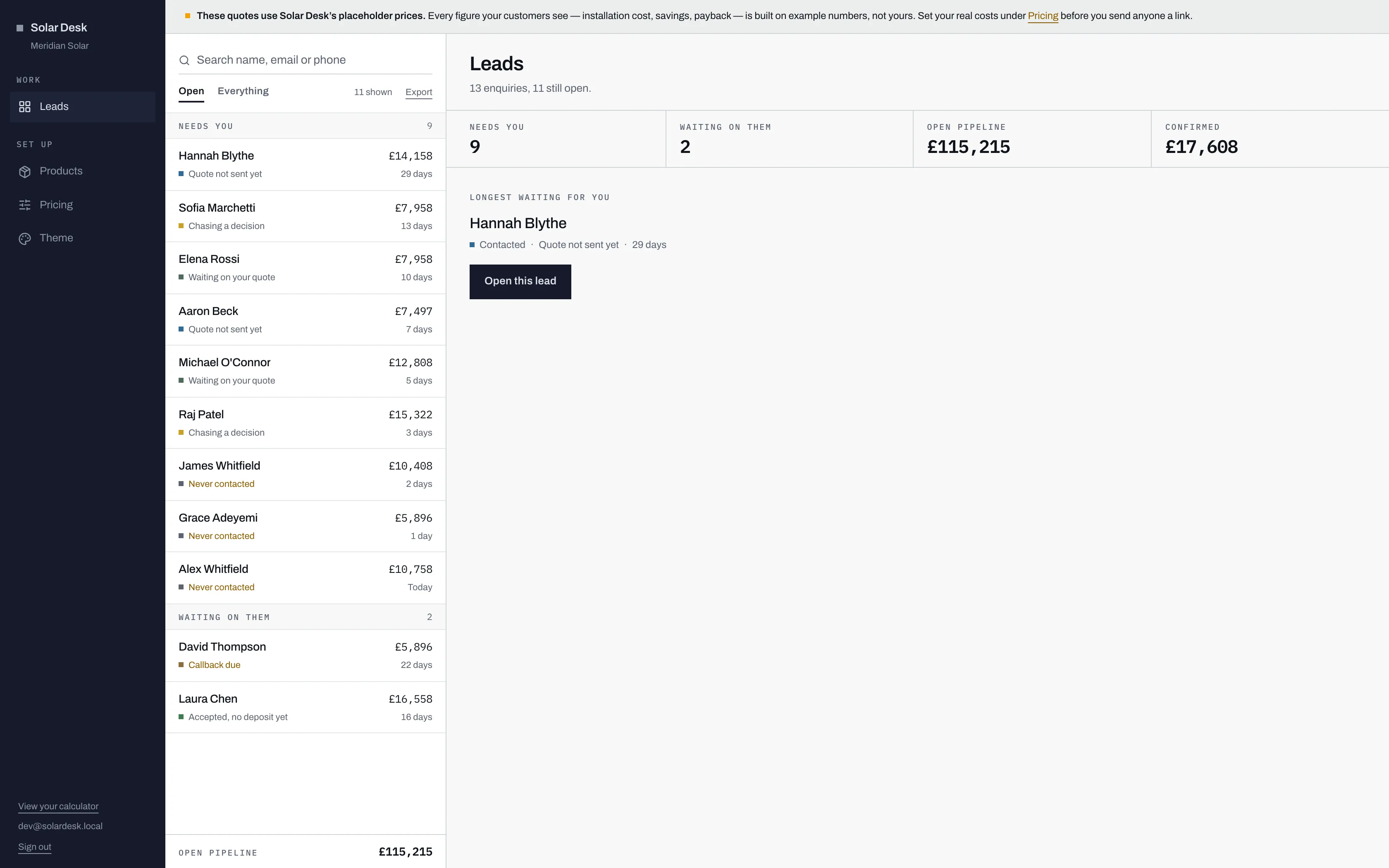
- Notices run across the top: the not-live banner, the suspended banner, and on Leads this amber-marked warning that your figures are still Solar Desk's placeholders.
- The rail. Leads is the work; Products, Pricing and Theme are the setting up of it. That is the whole application.
- The queue: every enquiry, grouped by whose move it is, longest waiting first.
- Before you pick a lead, an overview: what needs you, what is waiting on the customer, the open pipeline and confirmed sales.
- The bottom of the rail: a link to your own calculator, the email you are signed in as, and Sign out.
The rail
Section titled “The rail”Four entries in two groups: Work, which is Leads, and Set up, which is Products, Pricing and Theme. The screen you are on is highlighted.
The pipeline, and the screen you land on. Down the middle runs a queue of every enquiry, grouped under Needs you, Waiting on them and (on the Everything tab) Closed, with the lead that has waited longest at the top of each group. Each row gives the name, the installation cost, one line on what the lead is waiting for, and how long it has waited.
Pick a lead and it opens beside the queue: their roof, their answers, the system they configured, a button that makes the usual next status move, notes, history, quotes, messages and documents. Before you pick one, that space shows an overview with four figures (needs you, waiting on them, open pipeline and confirmed) and the lead to start with. Search, the Open and Everything tabs, and Export sit at the top of the queue, and the export holds exactly the rows on screen.
Start at the lead queue, then reading a lead.
Products
Section titled “Products”Your catalogue: the panels and batteries a customer picks from on step 4 of the calculator. New accounts arrive with nothing in it, deliberately, so that nobody’s quotes carry another installer’s hardware. See your product catalogue.
Pricing
Section titled “Pricing”The sheet everything else is arithmetic on. Generation, tariffs, your costs, how much solar a household actually uses, and your finance terms. Change a figure here and every new estimate moves. Admin only, and the most important page you will fill in. See setting your pricing.
The customer-facing side: colours, the wording on each step, and the behaviour settings that decide how fast you promise to call back and who gets emailed when an enquiry arrives. Also admin only. See branding your calculator.
The bottom of the rail
Section titled “The bottom of the rail”Under a good deal of empty space you get three things: a link to your own calculator, the email address you are signed in as, and Sign out.
The link is worth knowing by its wording. It reads Preview your calculator while your account is pending and View your calculator once you are live, which means you can always tell which state you are in without reading a banner. Either way it opens in a new tab. See previewing your calculator.
Where the banners appear
Section titled “Where the banners appear”Two banners can appear across the top of every screen, to the right of the rail:
- Not live yet. Your calculator answers 404 for the public while you add your pricing, products and branding. We take it live with you.
- Account suspended. Your pipeline is still here and still yours to read, but nothing can be changed and the calculator is offline.
A third notice looks similar but belongs to two screens only: the placeholder warning that runs across the top of Leads, and sits under the heading on Pricing, while your costs are still Solar Desk’s example figures. It goes away when you replace them, and it is worth knowing exactly what it checks.
What you will not find
Section titled “What you will not find”Two absences that surprise people, both covered elsewhere: there is no password reset and no way to add a colleague, and there is no notification centre. In-app, the only signals are the unread line on a lead in the queue, the grouping of the queue itself, and the flags at the top of a lead under Open the call with. Everything else arrives by email.