The lead queue
Leads, at solardesk.app/leads, is where you land when you sign in and
where most of your team will spend their day. It is one screen in three parts:
the rail down the left, a queue of every enquiry somebody finished on your
calculator, and the work surface beside it. Pick a lead in the queue and it
opens in the work surface, with the queue still there, so working through ten
leads never means finding your place in a list ten times.
The dashboard always wears Solar Desk’s own colours. Only the customer-facing side is branded as you. The demo installer in these screenshots is called Meridian Solar, and every price in them is invented.
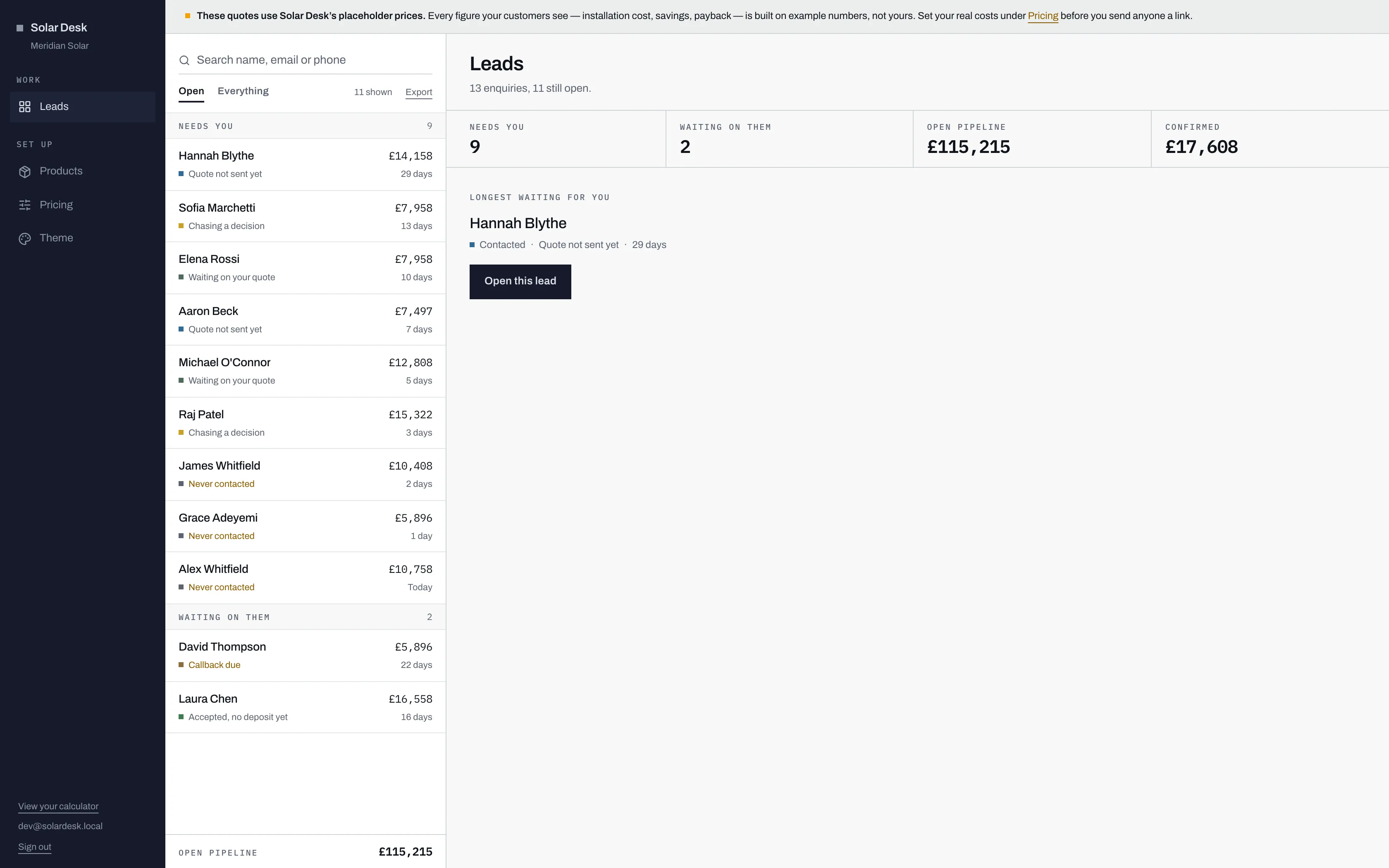
- Leads are grouped by whose move it is. Needs you comes first, then Waiting on them.
- Each row says what the lead is waiting for, in a few words, and how long it has waited.
- Export downloads exactly the rows the queue is showing, tab and search included.
- Open pipeline: the installation value of every open lead on screen.
- Before you pick a lead, the work surface names the one that has waited longest for you.
Three groups, by whose move it is
Section titled “Three groups, by whose move it is”The queue sorts your pipeline into three groups, and the group is the first thing it tells you about a lead.
- Needs you. New, Reviewing, Contacted and Interested, and any status of your own that is still open. Something is waiting on your team.
- Waiting on them. Asked to call later, and Accepted. The customer holds the next move: a date they asked you to ring back on, or a deposit they have still to pay.
- Closed. Bought and Lost. These only appear under the Everything tab.
Within a group, the lead that has waited longest comes first. Waiting is counted in days since anyone on your team last touched the lead: moved its status, added a note, saved a quote or sent a message. A lead nobody has touched counts from the day it arrived. So the top of Needs you is the enquiry that has gone longest with nobody doing anything about it, which is usually the one to ring first.
What a row says
Section titled “What a row says”Each row carries the customer’s name, the installation cost from the estimate they saw, the status colour square, one line saying what the lead is waiting for, and how long it has waited: “Today”, “1 day”, “12 days”.
| Status | What the row says |
|---|---|
| New | Never contacted |
| Reviewing | Waiting on your quote |
| Contacted | Quote not sent yet, or Quote sent once one has gone |
| Asked to call later | Callback due |
| Interested | Chasing a decision |
| Accepted | Accepted, no deposit yet |
| Bought | Sale recorded |
| Lost | Did not go ahead |
Two lines are set in amber text, because both are waiting on you: Never contacted and Callback due.
The row reads what actually happened where it can. A New or Reviewing lead somebody has already sent a quote to says Quote sent, whatever its status, because a customer with a quote in their inbox is not waiting on one.
And one line beats all of them. When a customer has written to you through their account and nobody on your team has opened the lead since, the row says 1 unread message (or however many there are) in amber, in place of everything else. It clears for everybody the moment any one of you opens the lead, because opening it marks the thread read.
Open and Everything
Section titled “Open and Everything”The queue opens on Open, which leaves out Bought and Lost. Everything puts them back, under their own Closed heading at the bottom.
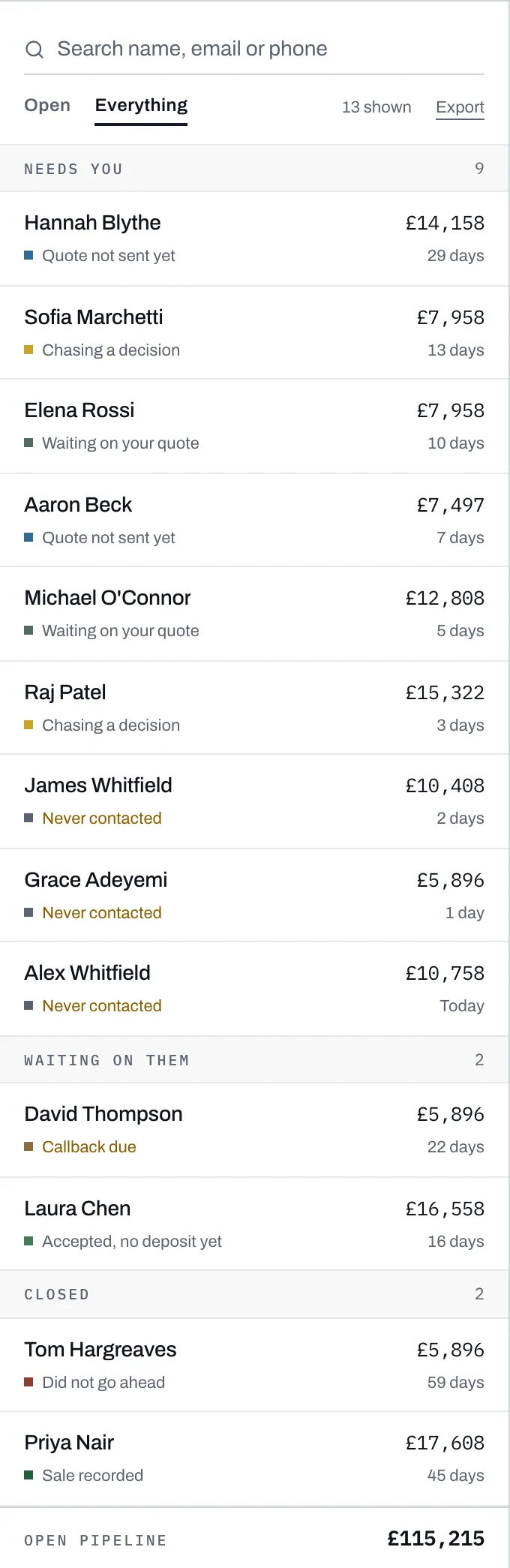
If you open a closed lead from a link, the queue starts on Everything, so the lead you are reading is in the list beside it.
Searching
Section titled “Searching”The search box matches name, email or phone, on any part of the value, ignoring capitals. It filters as you type, with nothing to wait for, and it searches the tab you are on.
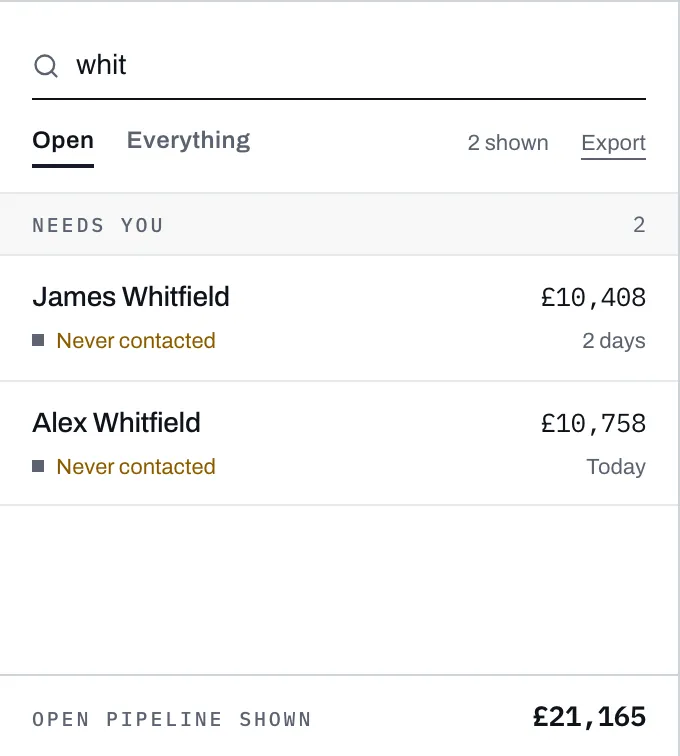
When a search finds nothing on the Open tab but does match a closed lead, the queue says so and offers a button that switches to Everything to show it, so a lead you remember does not look lost just because it is closed.
There is no search for an address or a postcode. If you need everyone in one town, export and filter in Excel.
The pipeline figure
Section titled “The pipeline figure”The foot of the queue shows Open pipeline: the installation cost of every lead on screen whose status counts as open. By default that is New, Reviewing, Contacted, Asked to call later, Interested and Accepted. While you are searching it reads Open pipeline shown, and adds up the matching rows only.
Two things about that figure are worth knowing.
The first is that Accepted counts as pipeline, not as confirmed. A customer clicking “yes” in their account has had no survey, no deposit and no contract. Your confirmed figure only moves when a person at your company records the sale. That is the whole reason the two events are separate, and it is covered on when a quote is accepted.
The second is that the figure comes from the estimate the customer generated, not from any quote you have since written. Editing a quote up or down does not move it, and the Excel export carries the estimate’s figure too. A quote’s own total is in the Quote panel on the lead.
Before you pick a lead
Section titled “Before you pick a lead”Until you pick a lead, the work surface shows an overview of the whole account.

Needs you and Waiting on them count the leads in each group. Open pipeline is the same sum as the foot of the queue with nothing filtered, and Confirmed adds up the leads marked Bought. Lost counts towards neither.
Under the figures, the overview names the lead at the top of the queue, the one that has waited longest for you, with an Open this lead button. It does not open that lead for you, and that is deliberate: opening a lead marks the customer’s messages read, and a lead nobody chose to open would lose its unread line before anyone had read a word.
Changing a status, adding a note
Section titled “Changing a status, adding a note”Nothing is edited on the row itself. Open the lead and use the button at the top of it, which makes the usual next move, or Move to… for any other status. See moving a lead through the pipeline. Notes live on the lead too; see notes and messages for the distinction that actually matters, which is between a note and a message.
When the queue is empty
Section titled “When the queue is empty”A brand new account has nothing in it until somebody finishes your calculator, and the queue says No leads yet. The overview beside it explains where leads come from and links to your calculator, so you can make the first one yourself.
A search with no matches anywhere says so in the queue; clear the box to get everything back.